Create and edit a project
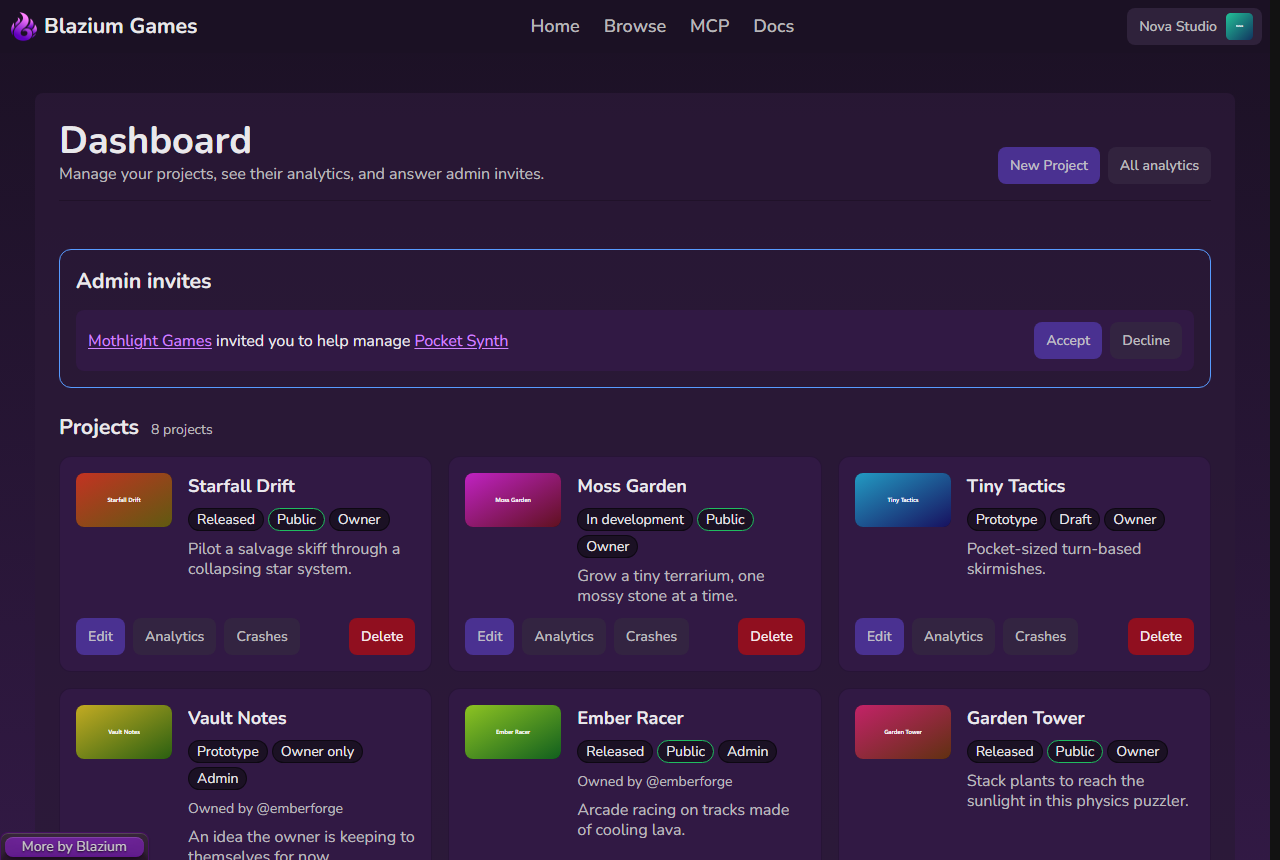
Projects are the pages you publish: games, applications, mods, plugins, tools and assets. You need developer mode first. Without it, the form says "Creating projects needs developer mode." with a link to the setting.
Your projects are on the Dashboard, in the account menu. Each card shows the status, the visibility and your role (Owner or Admin), with buttons for Edit, Analytics, Crashes and, for owners, Delete.
Create a project
-
On the Dashboard, click New Project.
-
Fill in Name and Project URL. The URL is the part after
username.blazium.games/: lowercase letters, numbers and dashes. -
Add a Short description of up to 255 characters.
-
Add both images:
- Add thumbnail: 960×540 to 1920×1080, 16:9, up to 5 MB.
- Add cover: 1024×576 to 2048×1152, 16:9, up to 8 MB.
Image guidance is in Graphical asset guidelines.
-
Choose the Project type, Status and Visibility.
-
Write the Description. The editor supports headings, lists, links, tables and code, or you can switch to plain Markdown.
-
Click Create project. The edit page opens.
Mods, plugins and tools pick their parent game on the edit page after you create them.
Visibility
| Option | Who can see the page |
|---|---|
| Draft (you and admins) | You and the project's admins. |
| Owner only | Only you. |
| Invisible (link only) | Anyone with the link. It isn't listed anywhere. |
| Public | Everyone. Listed in Browse and on the home page. |
Draft and owner-only pages show a notice at the top, so you can preview the store page before going public.
The edit page
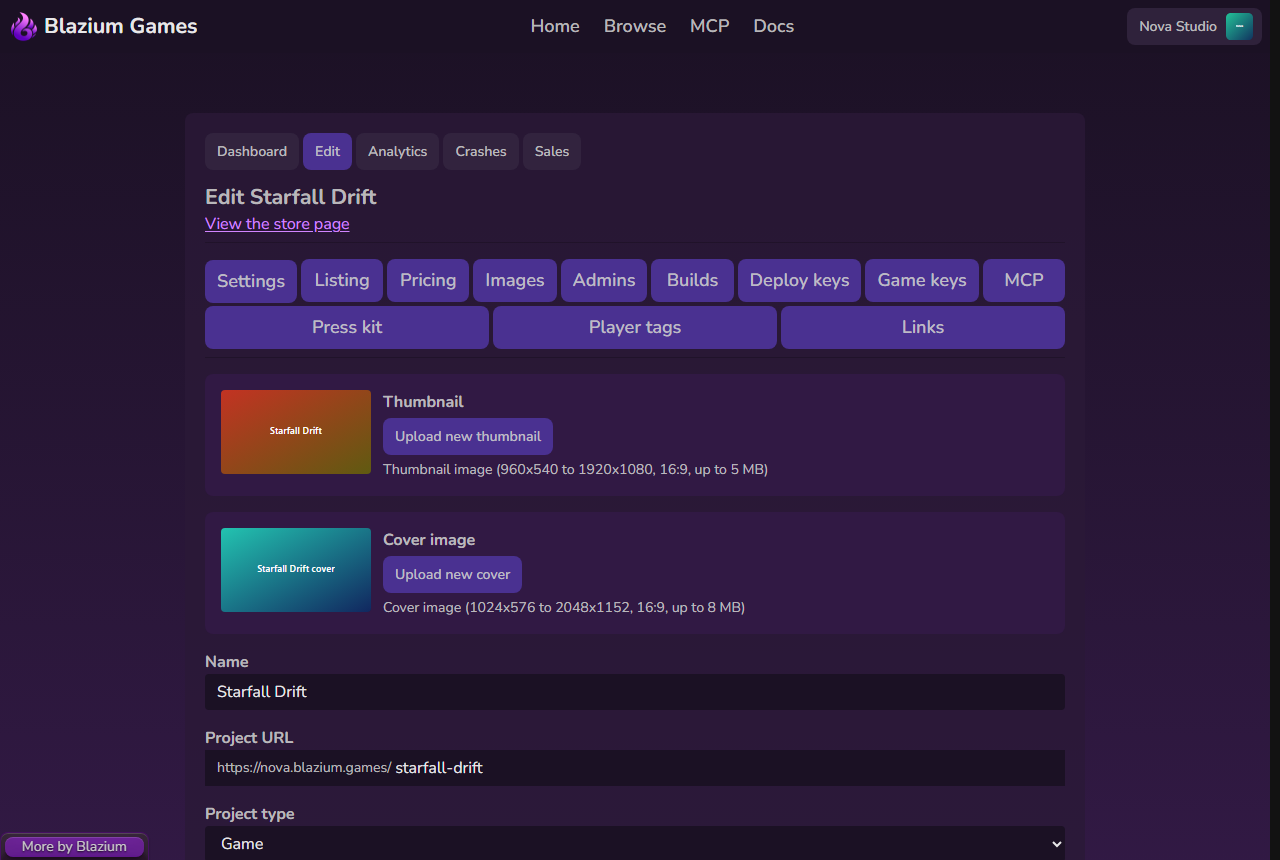
The edit page has a tab for each part of the project. Links such as /edit/my-game#builds open a tab directly.
| Tab | What it's for |
|---|---|
| Settings | Images, name, URL, type, parent game, status, description, visibility, the adult content flag, search engine indexing, and anonymous downloads. |
| Listing | Genres, tags, engines, tone, inputs, session length, players, network, content warnings, how it was made, generative AI use and similar titles. See Listings and search. |
| Pricing | Price, donations and editions. See Selling. |
| Images | Screenshots for the store page carousel: 1280×720 to 2048×1152, 16:9, up to 10 MB each. |
| Admins, Deploy keys, Game keys | See Team and keys. |
| Builds | See Builds and reports. |
| MCP | Connect an AI agent to this project. See MCP. |
| Mod settings | Mods and plugins only: the install folder, the mod loader and install instructions. |
| Press kit | Facts, links, quotes and team for your public press page. See Press kit. |
| Player tags | Tags players suggested. Hide any you don't want shown. |
| Links | Other listings this project uses or works with, and pages on other stores, shown under Also on. |
Most tabs have their own save button, such as Save, Save listing or Save pricing.
Make it public
A project needs to pass the listing check before it can be public. The check shows at the top of the Listing tab, and under Visibility while the project isn't public:
- ✗ items are required, for example enough tags and a build that passed the virus scan.
- ! items are recommended, such as three or more screenshots.
When everything required passes, it says "Listing ready to be public". Then set Visibility to Public and click Save.
You also need a verified email. Until then, the edit page says "Your email is not verified, so this project cannot be public and builds cannot be uploaded."
Adult content and the generative AI disclosure must be labeled honestly. See Content rules.
Rename the project URL
Change Project URL on the Settings tab and click Save. The store page moves to the new address, so update any links you shared.
Delete a project
Only the owner can delete a project.
- On the Dashboard, click Delete on the project's card.
- The dialog says "The project, its page, and its downloads will no longer be available. Admins lose access too."
- Click Delete project.