Buy and download a game
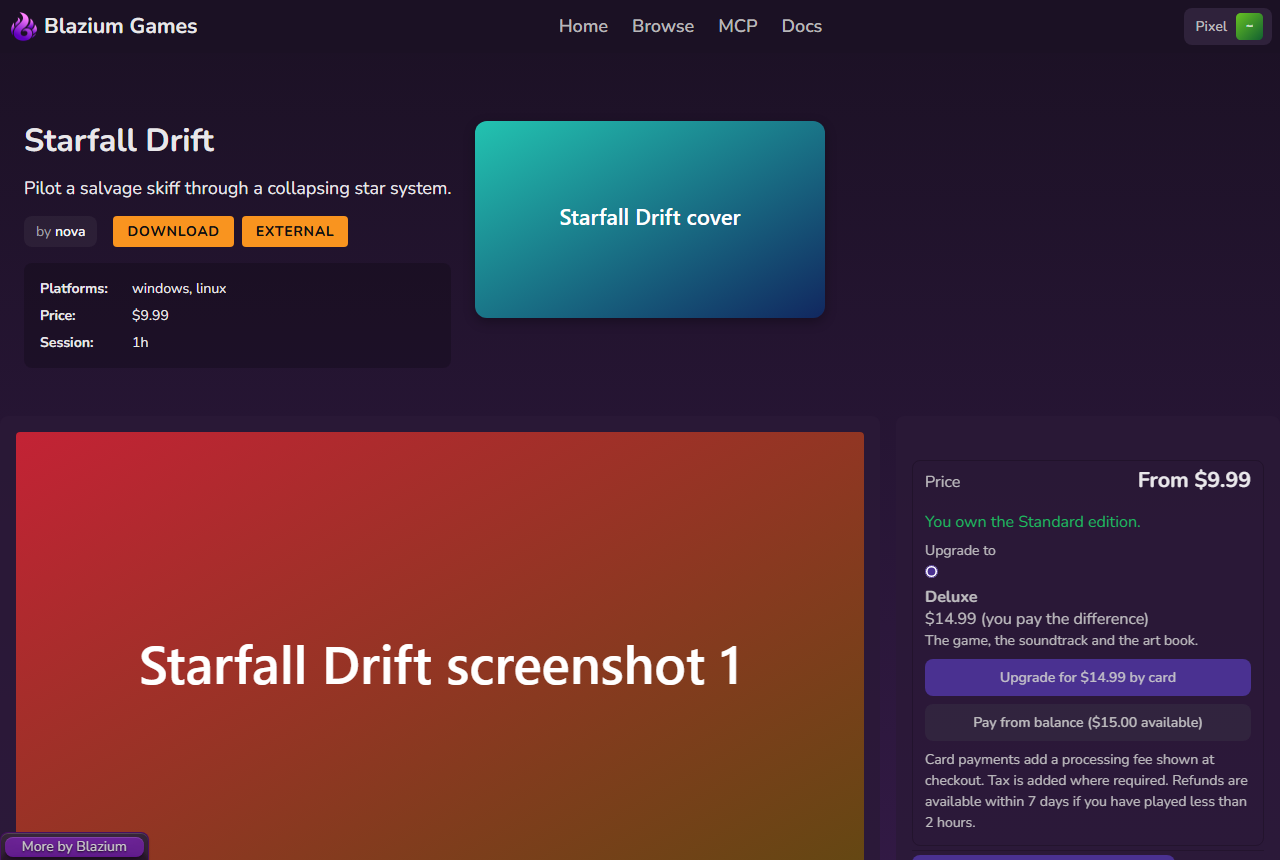
Every game has a store page at developer.blazium.games/game. The top shows the name, tagline, developer, platforms, price and typical session length. Below are the screenshots, About, What's new, reviews and similar games. The panel on the right is where you buy and download.
Before you start
- Sign in. Signed-out visitors see Log in to buy or Log in to donate, which brings you back to the page after you sign in.
- Verify your email. Until you do, the button reads Verify your email to buy and opens Verify email. Downloads need a verified email too.
Buy a paid game
- If the game has more than one edition, pick one under Edition. Each edition says what it includes, for example "Includes the beta channel."
- Choose how to pay:
- Buy for $X by card opens a secure checkout. Card payments add a processing fee, shown at checkout before you pay.
- Pay from balance ($X available) uses money you added to your wallet. A summary shows the price, tax and total. Click Confirm $X from balance to finish.
- After a card payment you land on a confirmation page. It says "Payment received. The game is in your library." once the payment clears. If it is still processing, the game is added as soon as the payment is confirmed.
If your balance is too low, the panel says "Not enough balance. Add funds or pay by card."
Once you own the game, the panel says "You own this game." or "You own the Deluxe edition." While a refund is still possible it also shows the deadline. See Refunds.
Upgrade to another edition
If you already own an edition, the panel shows Upgrade to with the editions above yours. You only pay the difference.
Donate to a free game
Free games can accept donations. Enter an Amount (USD) and click Donate by card or Donate from balance. Donations are not refundable.
Download

Each platform has its own button, such as Download for windows amd64. Builds from the beta channel say (beta). Under each button you see:
- The version and the date it was uploaded.
- The virus scan result, such as Virus scan passed or Virus scan in progress.
- A checksum, so you can check the file you downloaded.
Paid games say "Downloads unlock after you buy the game." until you own them.
To get an earlier build, open Older versions and pick one from Choose an older build. Some developers only offer the latest build, and then this menu is missing.
Some free projects allow downloads without an account. They say "No account needed. Sign in to keep it in your library."
Games marked Play in browser have a web build.
Join a beta
If a game has a beta, the panel says "This game has a beta with newer, less tested builds."
- Click Join the beta.
- Beta builds now appear in your download list, marked (beta).
- To go back to stable builds only, click Leave the beta.
Some editions include the beta channel. If you own one, beta builds are already in your list.
What can go wrong
- "Purchases are not available for this project right now." The game's purchase details could not be loaded. Try again later.
- "Checkout was canceled. You have not been charged." You left the card checkout before paying.
- "The payment failed. You have not been charged." Try again or use another card.
- A download sends you to the login page. Downloads need you to be signed in, unless the project allows downloads without an account.